 WinCC OA Service at CERN
WinCC OA & CTRL extensions
The extensions were tested using Visual Studio Code (1.125.0) and VSCodium (1.116.02821) on Windows 11 and Windows Server 2025 and Alma10.
There are two extensions, each cover different functionality:
- winccoa-plugin provides basic integration of WinCC OA to the IDE
- ctrld-plugin provides advanced language features, such as document outline, auto completion, hover information, goto definition
- this extension requires the winccoa-plugin to be present to use all the features
- it might be delivered as a bulk extension, platform dependent, that ships directly the ctrld LSP executable
- it might be as well just the light extension and point to the ctrld LSP executable on filesystem – this has to be configured manually
Downloads
- winccoa-plugin: download latest

- ctrld-plugin: download latest

(currently no bundled ctrld; must be fetched separately) - ctrld: global index version: download for Linux or download for Windows
To install and configure it, please follow the configuration steps
Installation instruction
Using commands pallet
- Open All Commands popup by Ctrl+Shift+P key combination
- Type "vsix"

- Choose "Extensions: Install from VSIX..."
- Locate the downloaded .vsix extensions
⚠️ The CTRLD extension exists in two variants, depending on the plaform.
Extensions management and drag-drop vsix file
- Open Extensions (Ctrl+Shift+X) management view

- From a file browser, drag the .vsix file and drop it in the Extensions pane
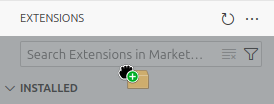
- The extension gets installed
Extensions management panel and manual selection
- Open Extensions (Ctrl+Shift+X) management view
- Click the little triple dots (...) "Views and More Actions"
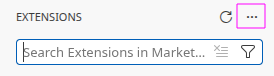
- Choose "Install from VSIX..."
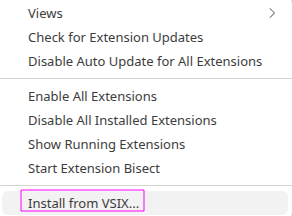
- Locate the downloaded .vsix extensions
After the installation, reload the window by either closing it or via the commands pallet Ctrl+Shift+P -> type reload -> Developer: Reload Window
Manual ctrld update & configuration
The latest ctrld artifact could be fetched following the download link. The archive is classic GitLab artifact thus it's essential to unpack the ctrld to your local machine. The rest in the archive could be ignored.
To use the standalone ctrld binary, there's a simple configuration step. If the custom path couldn't be resolved, there's an automatic fallback to the bundled binary, if available.
- Open Settings (Ctrl+,)
- Type "ctrlLsp.ctrld" in the Search settings field to configure the CTRL LSP client option

- Paste path to the ctrld binary on your machine
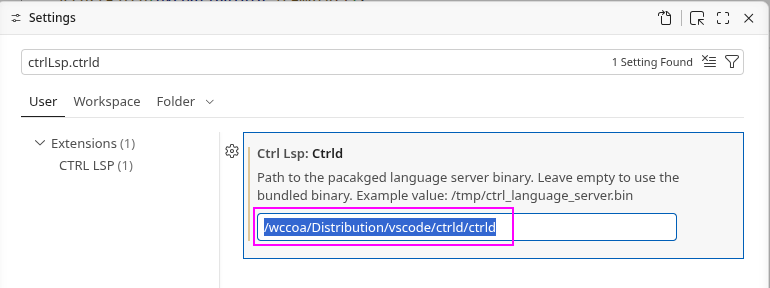
- Restart extensions or the complete IDE
This way, it's very simple to update/replace the LSP service binary.
Usage
Once the extensions are loaded, there are new icons placed in the left bar (default position):
- "WINCCOA" - that's where local WinCC OA projects could be inspected and operated; this view could be entered by Ctrl+Shift+Alt+P keyboard shortcut

- "Testing" - unit test integration, supports both native OaTest of WinCC OA and CERN fwUniTestComponent

- LSP service started in background; once started "[CTRL LSP] Starting client" popup notification appears
By default, a first project found in the machine is automatically selected.
⚠️ The selected project is not synchronized with the editor's workspace! It's user's responsibility to ensure the open folders are relevant to the selected project.
Features:
- syntax highlighting of .ctl files
- outline, autocompletion, hover, go-to symbol **within** single file
- config editing support
- quick Gedi/Para/config access via projects view