 WinCC OA Service at CERN
When and why should I update the license
The new WinCC OA licensing mechanism based on CodeMeter technology allows to update (modify) the license that have already been activated, with no need to replace it with another one.
The most prominent example is to update the validity period of developer licenses (covered below), yet the license update may also activate or change limits set in the licensing option (e.g. grant access to new feature, raise the limit of managers that can be used, etc). Note that production licenses DO NOT have an expiry date, which means they do not need to be updated to keep running. Still, one may want to update them to e.g. activate new licensing options, etc.
One should consider updating a license upon receiving notification from the CERN WinCC OA Service.
How to get my license validity extended
First of all, make sure that your Technical Contact is aware of the fact that you will need to have your license extended; around 4 weeks prior to the expiry date we will contact all Technical Contacts asking for the list of licenses (container IDs) that should be extended.
Then, once you get a notification about the license-update being available, you may proceed with the license update procedure as outlined in the dedicated procedure. Typically is is a trivial single-button-click operation that could be performed directly from the License Information panel of WinCC OA project administrator. For more complex cases, such as batch-update of many containers in the same host, commandline use, or download of the update via HTTP proxy (e.g. in isolated networks), please refer to the procedures.
It is much easier to extend the validity of an existing license than to replace it: no request needs to be sent and approved, and the procedure acts in a self-service manner.
The update of license applies to the whole container in which a license (or many licenses notably for license-servers) have been activated.
License update may be performed at your own convenience (unless specified differently in the notification) and usually it does not require a restart of the project(s).
How to find out the expiry date of my license
All development licenses expire in Spring of every year (e.g. end of April or May). Hence, if you requested a license at the end of March, you still need to have it updated a few weeks later to extend its validity for subsequent 12 months.
The expiry date of the license is clearly displayed in the License Information panel (accessible from the WinCC OA Project Administrator), after you select the Container Serial Number. Note that what you are interested in is the "Expire Date", not the "Maintenance period"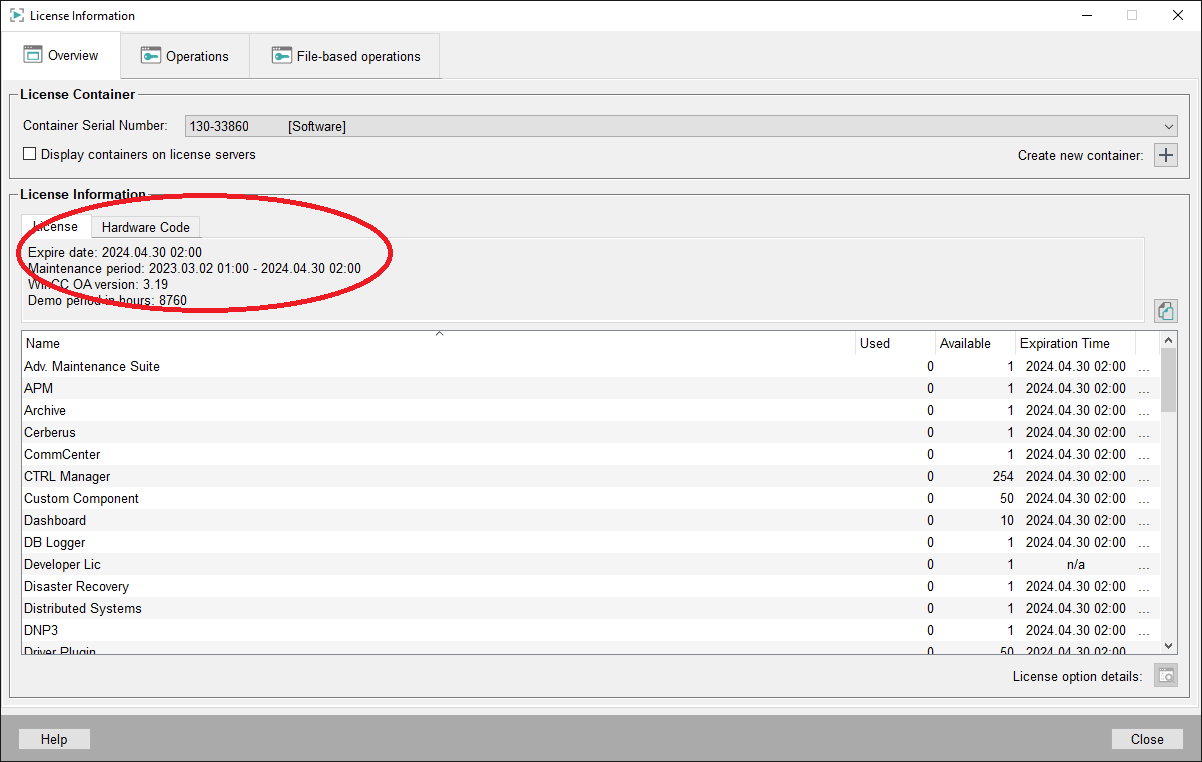
What happens if my license expires
If your license expires then after the so called grace period of a few days (during which you will see warnings in the log) the project that was using it may not be started anymore until it gets an updated license (or a new license).
Copying the project into another machine (with no license) is not sufficient to start it, even in the unlicensed "demo mode" that is available for projects run with no license.
Extending the validity of an expired licenses may be possible yet it may require additional delays of up to a few days.
What if I stop using WinCC OA
If you stop using WinCC OA, you may want to notify your Technical Coordinator so that the information is relayed to the WinCC OA Service and your registration as an authorized WinCC OA user is revoked. Prior to this, the license you activated may need to be rehosted: either returned to the pool of existing licenses, or activated on another machine, if it is still going to be needed by your team.
When your affiliation with CERN terminates (end of the CERN contract, end of affiliation with University), your CERN account gets blocked, and hence also your access to WinCC OA.
Even though the license remains technically valid (until its upcoming validity date), you are not entitled to use WinCC OA anymore, and cease to use it. If you had the software installed in your own personal computer or laptop, you are obliged to uninstall it and delete the copies of the software installation packages as well as all license containers, unless the University or Institute you will be affiliated with has a valid sublicense agreement and requests your registration as an authorized user affiliated with the institute.